Zscaler 블로그
Zscaler 블로그의 최신 업데이트를 이메일로 받아보세요
Best practices for securing Azure Active Directory

Many of the default settings in Azure Active Directory and Entra ID leave gaps in your security controls. Here’s how to close them.
This article was originally published by Red Canary, which is now part of Zscaler.
In the realm of cloud computing, securing your digital environment is paramount. Microsoft Azure offers a robust framework for protecting your organization’s data and resources. By implementing specific security settings, you can significantly enhance the security posture of your Azure cloud environment, but you might be surprised by their default configuration. Here’s a guide to a few best practices based on the CIS Microsoft Azure Foundations Benchmark.
1. Restrict external collaboration to specified domains
Control who can collaborate with your organization to minimize the risk of data leaks and unauthorized access. Entra ID allows you to restrict external collaborations to users from specific domains. This setting ensures that only trusted entities can participate in your business processes, safeguarding sensitive information. Azure’s default is to allow invitations to be sent to any domain.
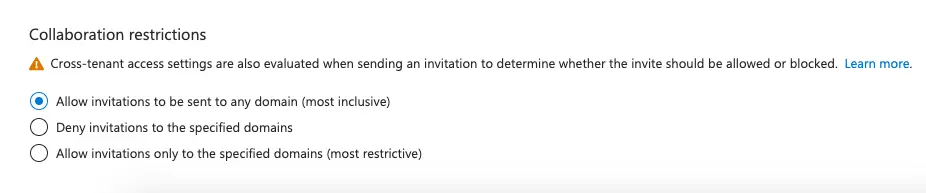
Entra ID > External Identities > External collaboration settings > Collaboration restrictions
2. Tighten guest invitation controls
Limiting who can invite external users to your organization helps prevent unauthorized access. By restricting this capability to specific admin roles, you can ensure that only responsible and trained personnel can extend invitations, reducing the risk of accidental or malicious invites. Azure’s default allows anyone in the organization to invite guest users.
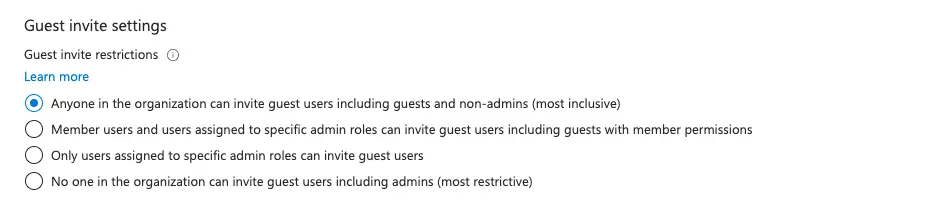
Entra ID > External Identities > External collaboration settings > Collaboration restrictions

Turn on high-powered security operations fueled by Microsoft data
3. Secure guest user access
Guest user access is restricted to properties and memberships of their own directory objects. It’s important to limit guest users’ access within your organization. By restricting their access to their own directory objects, you prevent them from viewing or modifying information outside their permitted scope. The default Azure configuration is set to limit access to properties and memberships of directory objects.
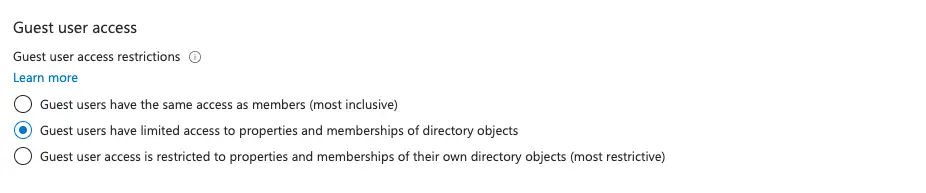
Entra ID > External Identities > External collaboration settings > Collaboration restrictions
4. Control default user permissions
We have three recommendations for limiting default user permissions. First off, disallow users from being able to register applications to ensure that new applications undergo a formal security review before being added to Azure. Next up, limit non-admin users from creating new tenants to prevent unauthorized deployment of resources in the cloud. Finally, restrict security group creation and the ability to add users to security groups to only privileged users. The default Azure user role permissions allow users to register applications with Azure. The default also enables non-admin users to create new tenants and allows users to create and manage security groups.
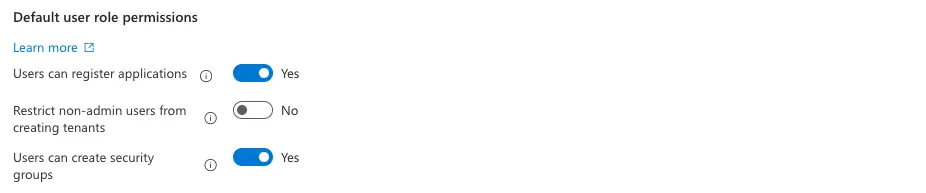
Entra ID > > User settings > Default user role permissions
5. Manage subscription policies
Controlling your Azure subscriptions is vital for security and compliance. By preventing subscriptions from being moved in or out of your tenant, you can avoid potential security breaches and ensure that your governance policies remain consistent. The default subscription policy will allow everyone to add or remove subscriptions from your Azure tenant.
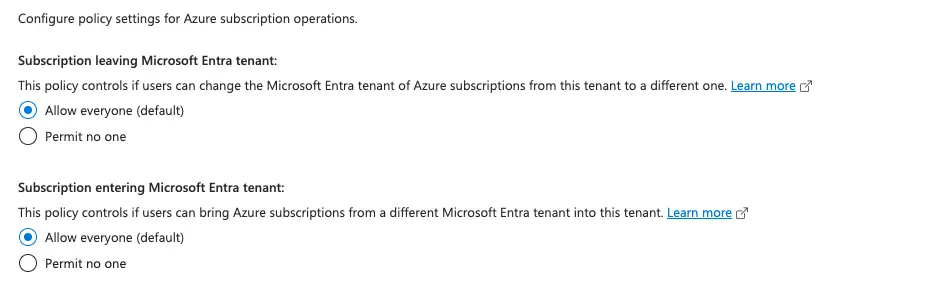
Subscriptions > Advanced Options > Manage Policies
6. Limit access to the Microsoft Entra admin center
Limiting access to the Entra admin center to only those who need it reduces the risk of accidental or malicious changes to your tenant’s settings. This control is crucial for maintaining the integrity and security of your Azure environment. The default configuration will allow any user to view your Microsoft Entra admin center.

Entra ID > > User settings > Administration center
7. Disable LinkedIn account connections
Disabling LinkedIn integration can help prevent phishing attacks and accidental information disclosure. The default configuration allows users to connect their LinkedIn accounts with their Microsoft Entra ID account.
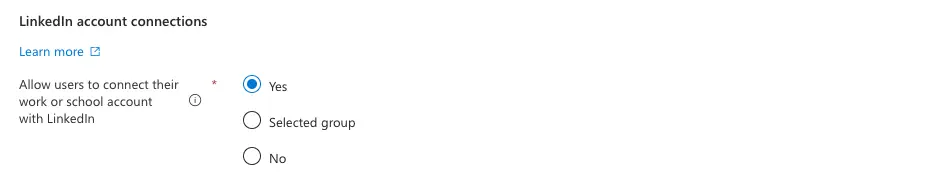
Entra ID > > User settings > LinkedIn account connections
8. Strengthen consent and permissions
Controlling app consent is essential to prevent data leaks and ensure that only approved applications can access company data. By disallowing user and group owner consents, you ensure that any application access to your company’s data is thoroughly vetted and approved by your IT or security team. Azure’s Enterprise Application default consent policy will allow users to consent for apps.
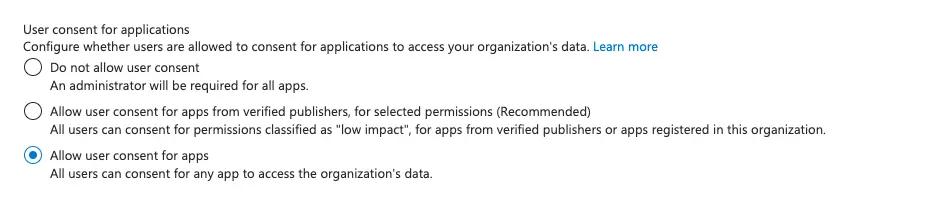
Entra ID > Enterprise Applications > Consent and permissions
Conclusion
Implementing these security settings in Azure can dramatically improve your organization’s security posture. Still we strongly recommend you proceed cautiously and verify that adjusting the controls will not break your environment. While some settings may restrict certain functionalities or require more administrative oversight, the trade-off for enhanced security is often worth it. As with any security measures, it’s essential to balance security with usability, ensuring that your security practices support your organization’s productivity and collaboration needs.
REAL-TIME PROTECTION IN AZURE

이 게시물이 도움이 되었나요?


면책 조항: 이 블로그 게시물은 정보 제공만을 목적으로 Zscaler에서 작성하였으며, 정확성, 완전성 또는 신뢰성에 대한 어떠한 보증도 없이 "있는 그대로" 제공됩니다. Zscaler는 제공된 정보를 기반으로 수행된 조치나 오류 또는 누락에 대해 어떠한 책임도 지지 않습니다. 이 블로그 게시물에 링크된 제3자 웹사이트나 리소스는 편의를 위해서만 제공되며, Zscaler는 해당 웹사이트의 콘텐츠나 관행에 대해 책임을 지지 않습니다. 모든 콘텐츠는 예고 없이 변경될 수 있습니다. 이 블로그에 접속함으로써 귀하는 본 약관에 동의하며 귀하의 필요에 따라 정보를 확인하고 사용할 전적인 책임이 귀하에게 있음을 인정합니다.

