Zscaler 블로그
Zscaler 블로그의 최신 업데이트를 이메일로 받아보세요
Tip of the CAP: Getting started with Conditional Access Policies

Admins can leverage Microsoft’s Conditional Access Policies to prevent unauthorized Azure logins, even in the face of stolen credentials.
This article was originally published by Red Canary, which is now part of Zscaler.
The widespread adoption of cloud-based services has opened new attack surfaces, exposing things that used to be only accessible from the intranet to anyone in the world with an internet connection. Some of the most widely used productivity software is sold by Microsoft, which is why they are one of the most impersonated brands in phishing attacks. Too often, these phishing attacks are successful.
Cloud-based identities are increasingly vulnerable. Microsoft’s Conditional Access Policies (CAP) serve as a prevention tool that can help keep your users and data safe, even if their credentials have been compromised in an attack. In this article we’ll break down the components of CAPs and talk through how you can apply them to your environment.
Let’s get started.
What are Conditional Access Policies?
In the world of Azure AD, every authentication event has certain “signals.”

No, not those signals…
These signals are the attributes of the authentication event. They include things like the account used, geolocation of the IP address, onboarding status of the device, application that made the request, and more. These signals are the building blocks of CAP enforcement decisions and Azure AD Identity Protection alerts. The distinction between alerting and prevention can be tricky to understand, so let’s break it down.
Azure AD Identity Protection alerts rely on the same signals from the authentication event, and translate them into user risk or sign-in risk. For detection types that are listed by Microsoft as “offline” (the majority of them), the data has to make its way through Microsoft’s threat detection algorithm before showing up in your portal as an alert. According to Microsoft’s documentation, that can sometimes take as long as 48 hours. For “real-time” detection types, the turn around is closer to 5-10 minutes.
Putting it in different terms, Azure AD Identity Protection alerts are retroactive alerts for authentication events to Azure AD. These alerts do not block adversaries from successfully authenticating, and require investigation to determine if they are true and false positives. Marking these alerts accurately provides feedback to Microsoft and helps improve their fidelity over time.
But what if you want to block the authentication from ever succeeding in the first place?
Using those same underlying signals, CAPs can be created to prevent unauthorized authentication, even if the user’s credentials have been compromised.
How do Conditional Access Policies work?
CAPs require configuration and are set to the firewall equivalent of “allow any any” by default and operate directly upon those user authentication signals we mentioned previously. (If your tenant was created after October 2019, Security Defaults may be enabled.)
CAPs can apply restrictions on a granular basis. For example:
- Blocking access to SharePoint or OneDrive from unmanaged devices
- Forcing phish-resistant MFA on all administrator accounts
- Forcing a user to reset their password on next login
In short, CAPs are a powerful tool for prevention and response to credential theft. Microsoft’s graphic does a good job of summing it up:
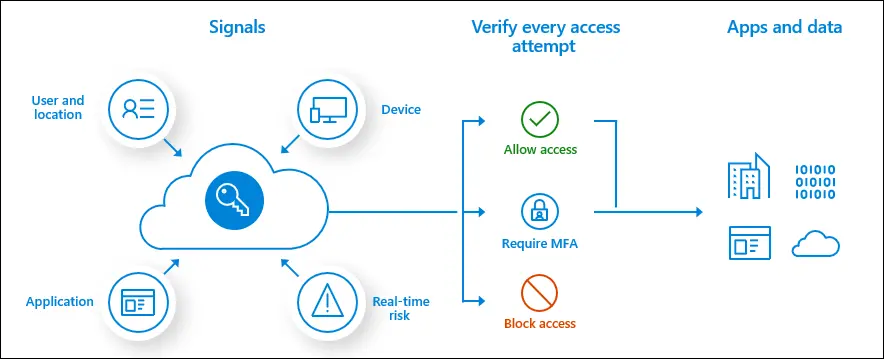
Graphic courtesy of Microsoft documentation
Your user and location, application, device, and real-time risk signals are matched against your CAPs in order to allow access, require MFA, or block access to specific Azure AD applications and data.
How do I get started?
Setting these up for your environment may take some time. Microsoft provides some great templates to get you started and Daniel Chronlund has put together his list of baseline recommendations. These templates can serve as starting points to work off of when building policies for your organization, and should be thoroughly reviewed with the appropriate “break glass” exclusions in place before deploying to your environment.
MDR FOR MICROSOFT

이 게시물이 도움이 되었나요?


면책 조항: 이 블로그 게시물은 정보 제공만을 목적으로 Zscaler에서 작성하였으며, 정확성, 완전성 또는 신뢰성에 대한 어떠한 보증도 없이 "있는 그대로" 제공됩니다. Zscaler는 제공된 정보를 기반으로 수행된 조치나 오류 또는 누락에 대해 어떠한 책임도 지지 않습니다. 이 블로그 게시물에 링크된 제3자 웹사이트나 리소스는 편의를 위해서만 제공되며, Zscaler는 해당 웹사이트의 콘텐츠나 관행에 대해 책임을 지지 않습니다. 모든 콘텐츠는 예고 없이 변경될 수 있습니다. 이 블로그에 접속함으로써 귀하는 본 약관에 동의하며 귀하의 필요에 따라 정보를 확인하고 사용할 전적인 책임이 귀하에게 있음을 인정합니다.

