Network troubleshooting is a critical skill for IT professionals, and ping is one of the most fundamental tools for diagnosing network issues. From checking if a host is reachable to measuring latency, ping is simple yet powerful. In this blog, we’ll walk through how ping works, best practices for using it, and how modern solutions like Zscaler Digital Experience (ZDX)™ can elevate traditional ping-based troubleshooting.
What Is Ping?
Ping is a network utility that tests connectivity between devices on an IP network. By sending a small packet to a target IP address and measuring the time it takes for a response, ping reveals if the target is reachable and provides basic insights into network latency.
How it Works:
- Ping transmits an internet control message protocol (ICMP) echo request to the designated host.
- If the host is reachable, it sends an ICMP echo reply.
- The round-trip time (RTT) is measured, giving an indication of network latency.
Why Use Ping for Network Troubleshooting?
Ping is widely used to:
- Check connectivity: Verify if a device is reachable on the network.
- Measure latency: Determine how long it takes for data to travel to the target and back.
- Identify packet loss: Measure if any packets fail to reach the destination, which may indicate network congestion.
While ping is foundational, it has limitations, such as only testing reachability to the server across the network. To gain deeper insights, professionals often need more advanced tools.
How to Use Ping
To run a ping test, open a command prompt (Windows) or terminal (Mac/Linux) and type:
ping [IP address or domain name]
Example:
ping 8.8.8.8
The response will show:
- Packets sent/received: Indicates network reliability
- Round-trip time (RTT): Reveals the speed of your network connection
- Packet loss: Shows if data isn’t reaching its destination
Common Use Cases for Ping
- Testing internet connection: If you suspect internet issues, pinging a public IP like 8.8.8.8 (Google’s DNS) can quickly verify internet connectivity.
- Local network troubleshooting: Ping can check if devices on the same network (like printers or other computers) are reachable.
- Diagnosing network latency: High RTT values may indicate a network bottleneck or latency issue.
Best Practices for Using Ping
- Ping multiple times: One ping might not reflect network consistency. Sending a series of pings (e.g., ping -c 10 on Linux/Mac) gives a better picture.
- Ping different locations: Try both local and external addresses (default gateway) to pinpoint if issues are internal or external.
- Monitor RTT: Consistent high RTT indicates a network issue, even if connectivity is established.
Limitations of Traditional Ping
While useful, ping has limitations:
- No visibility beyond reachability: Ping only tests whether a device is reachable, without detailing any issues beyond that point.
- Limited path analysis: You won’t know if the problem lies in an intermediate network node.
- Static view: Ping provides a snapshot in time, lacking ongoing monitoring capabilities.
How Zscaler Digital Experience (ZDX) Enhances Ping-Based Troubleshooting
Zscaler Digital Experience (ZDX) enhances traditional ping by offering patented near real-time, end-to-end network visibility that goes beyond basic reachability. Here’s how ZDX provides more comprehensive troubleshooting:
Continuous monitoring
Unlike ping, which is often used as a one-time check, ZDX offers continuous monitoring of device, network, and app performance. This allows IT teams to proactively detect issues and see trends over time.
Deeper path analysis
ZDX doesn’t stop at simple connectivity checks. It provides insights into the entire network path, helping identify which segment of the network (e.g., LAN, WAN, or ISP) might be causing latency or performance issues.
User experience visibility
ZDX monitors how network performance impacts user experience, with metrics on latency, packet loss, and jitter—offering a richer view than ping’s limited round-trip time.
Automated diagnostics
ZDX can automatically diagnose and even alert you to issues across different points in the network path, helping IT teams identify the root cause faster than with manual ping tests.
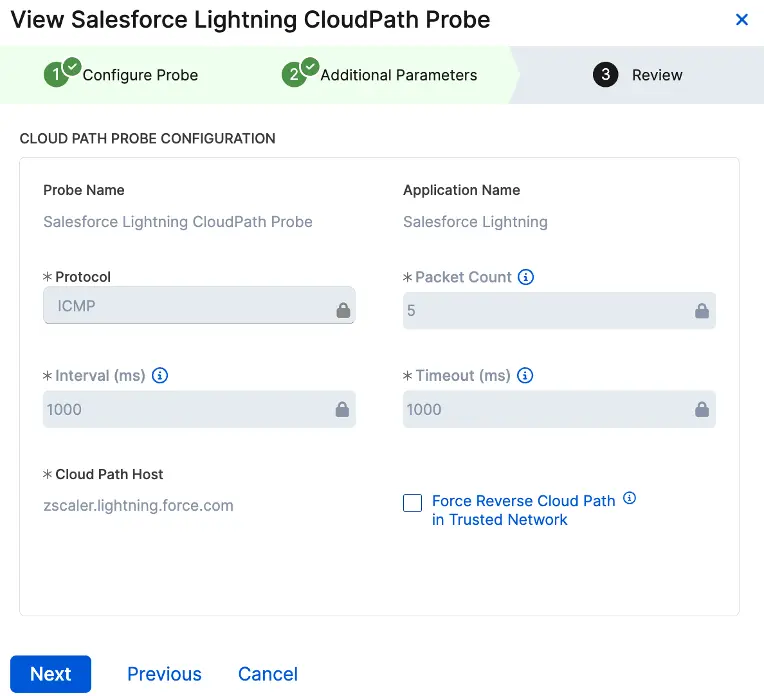
ZDX automated ping tests

ZDX full end-to-end data path
When to Use Ping vs. ZDX for Network Troubleshooting
While ping remains useful for quick checks, ZDX is invaluable when you need comprehensive, real-time insights. Here’s when to use each:
Use Case | Ping | ZDX |
Quick reachability check | Yes | Yes |
Continuous network monitoring | No | Yes |
Path analysis | Limited | Detailed and comprehensive |
User experience insights | No | Yes |
Automated diagnostics | No | Yes |
Conclusion
Ping remains a valuable tool in any network engineer’s arsenal, especially for basic connectivity tests. However, for organizations needing proactive, continuous network performance insights, Zscaler Digital Experience provides a powerful alternative, offering end-to-end visibility and automated diagnostics that traditional tools lack.
By combining the simplicity of ping with the sophistication of ZDX, network engineers can troubleshoot faster and more effectively, ensuring a seamless user experience across the network.
Want to learn more about how Zscaler Digital Experience can transform your network troubleshooting? Contact us today for a demo and see how real-time insights can help your organization stay connected and efficient.